How to play bingo on Zoom, free and step by step
Zoom bingo needs three things: a caller everyone can hear, cards everyone can mark, and a fair way to check a win. BingoHoster does all three from one link. The host shares their screen, a real voice calls the numbers, and each player dabs live tickets on their own phone. It works exactly the same on Microsoft Teams and Google Meet. Five steps, about five minutes, nothing to install.
Bingo on Zoom in five steps
1Create a free room
Open Play Online Together on BingoHoster, give the game a name, pick 90-ball or 75-ball, choose a voice and how many cards each player gets. You get a short link and a QR code. No account needed. Start from Play Online Together.
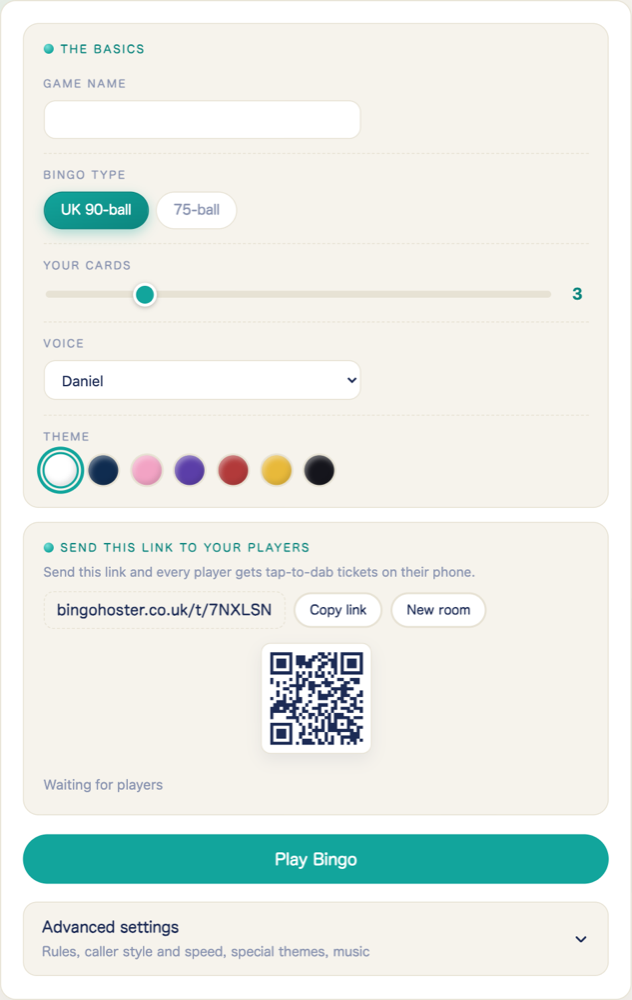
2Paste the link in the Zoom chat
Send the room link to everyone in the meeting chat. Each player opens it on their phone or a second browser tab, types a first name and picks a card number. Their tickets appear straight away.
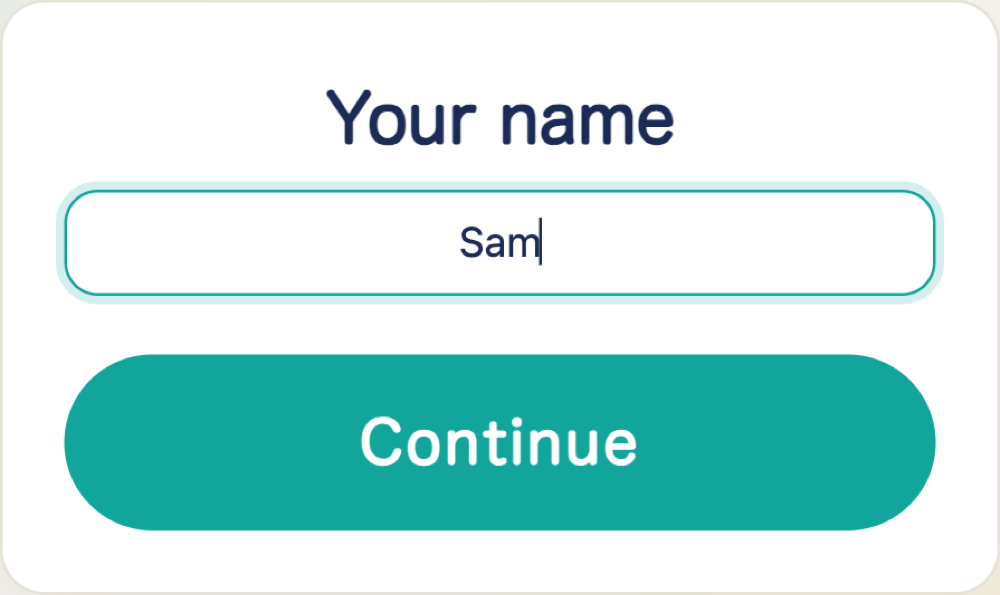
3Share your screen
In Zoom press Share Screen and choose the BingoHoster tab or window. Tick Share sound so the caller's voice goes out with the picture. Now everyone sees the big board and the current number on the call.
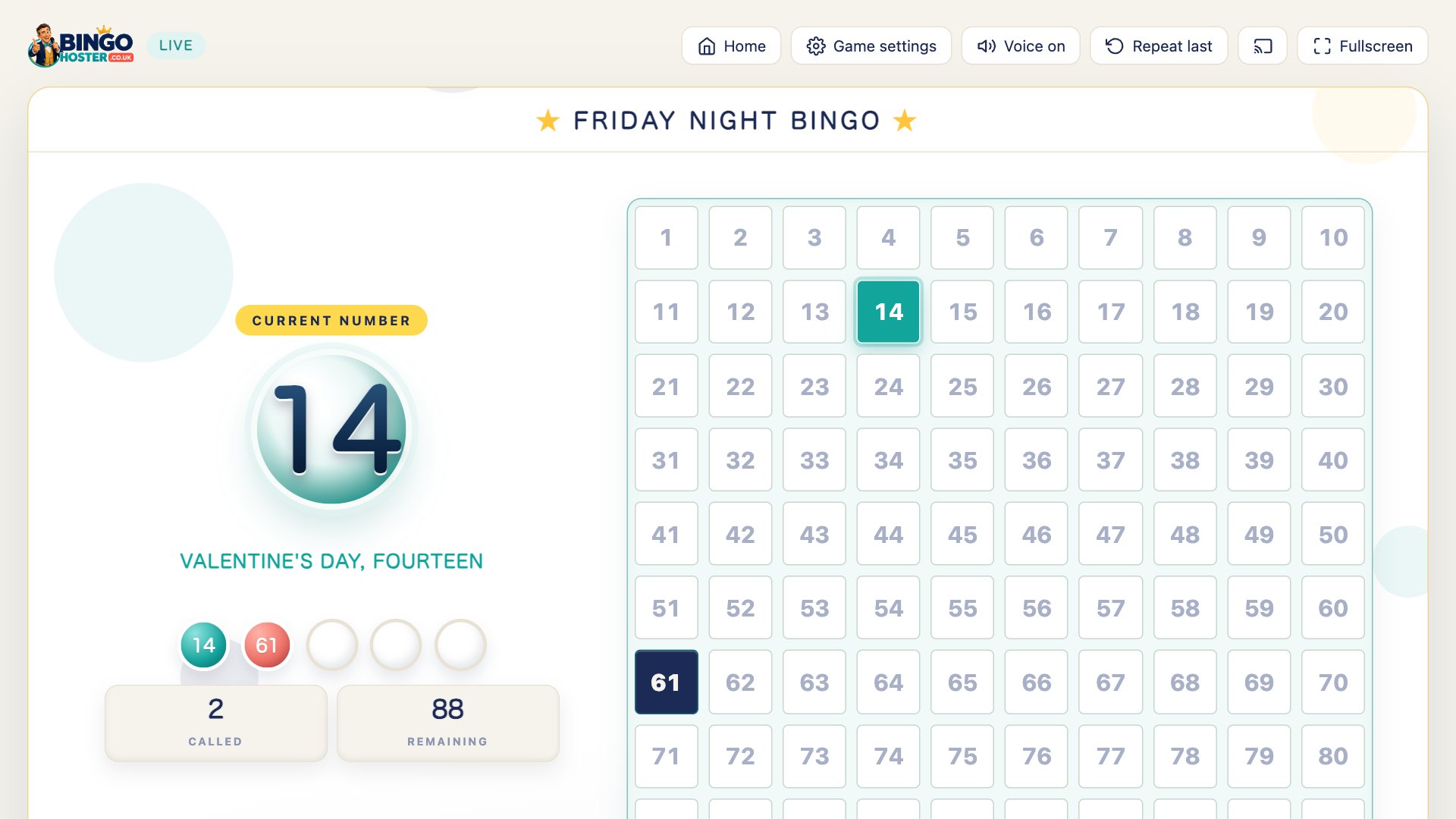
4Press Let's Play Bingo
The countdown runs, the music drops out and the caller starts. Numbers arrive on every player's phone at the same moment they show on your screen, so nobody needs to squint at the video.
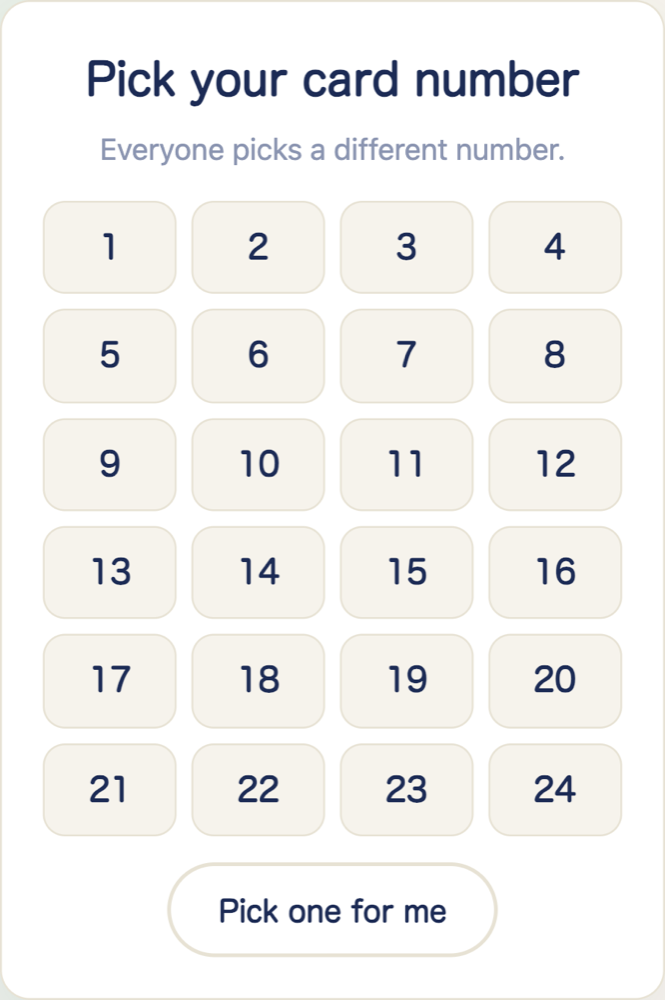
5Someone shouts BINGO
The player taps the BINGO button on their phone. The game checks their card against the called numbers and the chosen pattern, and every screen flashes the result with their name. Play again from the same room for the next game.
Bingo on Microsoft Teams
Same game, same link. In the Teams meeting press Share, choose the BingoHoster window, and switch on Include computer sound so the caller is heard. Players open the room link on their phones exactly as on Zoom. For a work social, 75-ball with a quick pattern such as four corners keeps each game to ten minutes.
Bingo on Google Meet
Press Present now, choose A tab, pick the BingoHoster tab and tick Share tab audio. Meet only shares sound from a tab, not a whole window, so keep the game in its own tab.
Tips for a smooth Zoom bingo night
- Test the sound first. Share the screen before people arrive and ask one person whether they hear the caller.
- Put the link in the chat and pin it. Late arrivals then find it without interrupting.
- Set the pace for the room. The caller speed lives in the game settings. Slower for grandparents, faster for the office.
- Turn on Auto-tick for anyone who wants it. The phone dabs for them, so they can chat and still win.
- Pick a theme. Christmas lights, Halloween, a beach or outer space, and the shared board dresses up for the occasion.
- Run three games. A quick line, a pattern, then a full house or blackout for the finale. Play again from the same room each time.
Prefer paper cards on the call?
Print cards from the free bingo card generator and post or email them before the night, then host with The Hoster and share your screen. Players mark paper, you check the card against the board. The virtual bingo page covers both setups.
Questions people ask
How do you play bingo on Zoom for free?
One person hosts on BingoHoster and shares the room link in the Zoom chat. Everyone opens it on their phone for live tickets, the host shares their screen so the board and the caller's voice go out on the call, and the game checks each BINGO automatically. It is free, with no sign-up, no app and no payments.
Do players need bingo cards for Zoom bingo?
No paper needed. The room link deals each player unique tickets on their phone that follow the caller live, with tap-to-dab or Auto-tick. If you prefer paper, print cards from the free bingo card generator before the call and use The Hoster mode instead.
How do I share the bingo caller's sound on Zoom?
When you press Share Screen in Zoom, tick the Share sound box at the bottom of the window before choosing the BingoHoster tab. On a Mac, Zoom may ask to install an audio driver the first time. Players also hear the number on their own phone if they turn the phone's sound on.
Does it work on Microsoft Teams and Google Meet?
Yes, the steps are the same. In Teams press Share, choose the window and turn on Include computer sound. In Google Meet press Present now, pick A tab, and tick Share tab audio. The room link works on any video call, including FaceTime and WhatsApp, because the tickets live on each player's phone, not in the call.
How many people can play bingo on Zoom?
As many as your call holds. Each player uses their own phone for tickets, so the game does not get slower with more people. It is designed for families, friends, teams at work, care homes and church groups rather than public games.
Can we play Zoom bingo without screen sharing?
Yes. Every player already sees the latest numbers above their tickets on their own phone, so screen sharing is optional. Sharing is nice because the whole group sees the same big board and hears the caller together, but the game works without it.
What if someone joins late or drops off the call?
They open the same link again, pick the same card number, and their tickets come back exactly as dealt with every called number already marked. Nothing is lost.